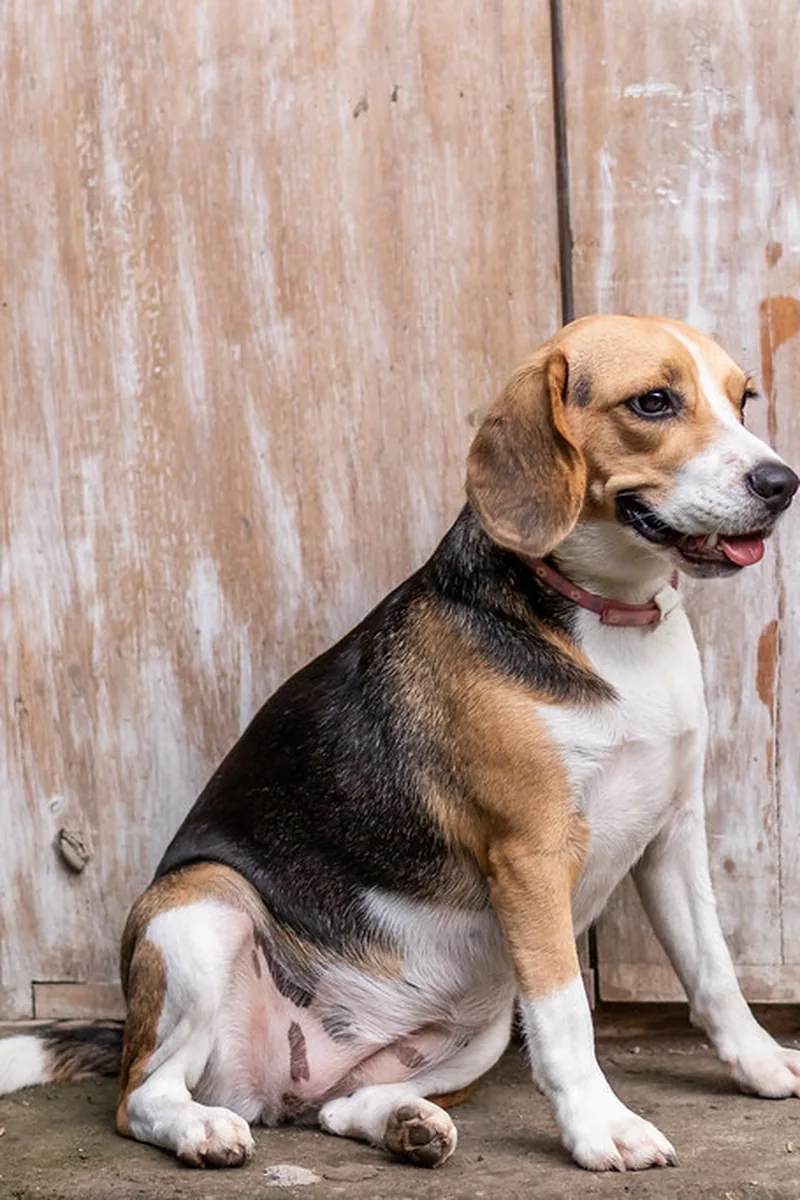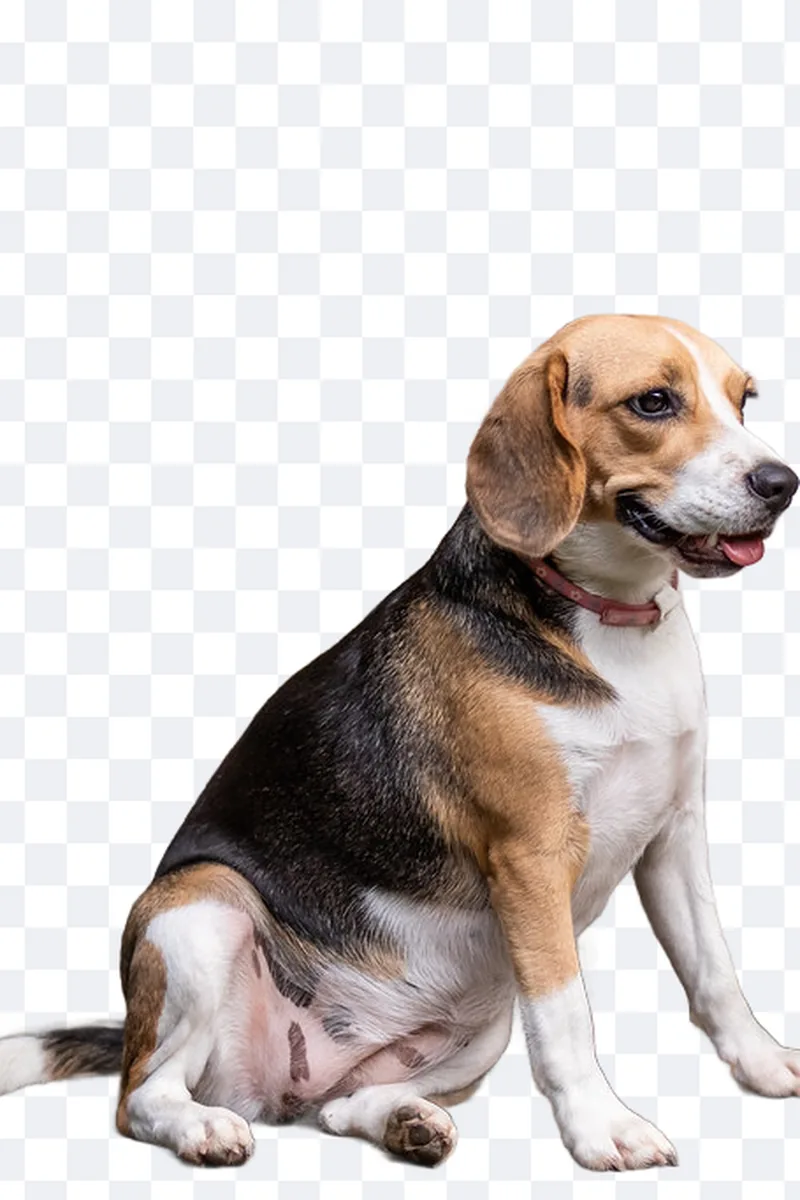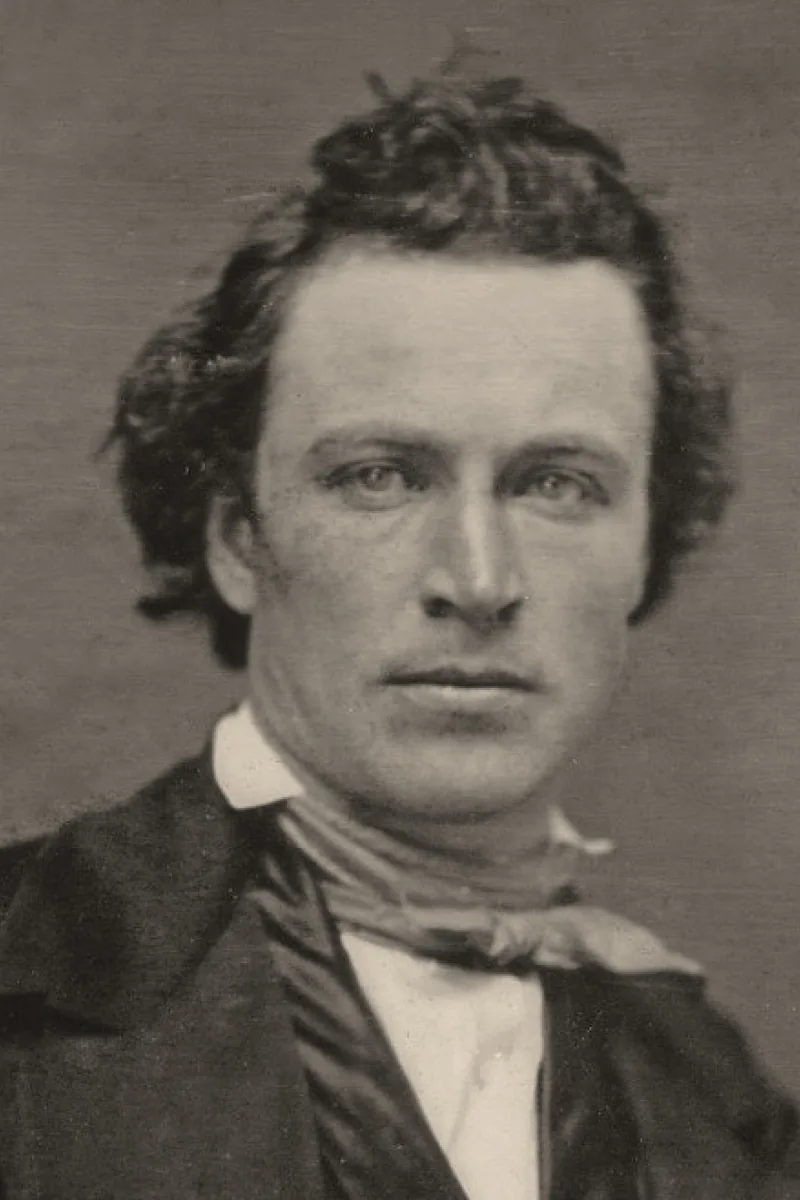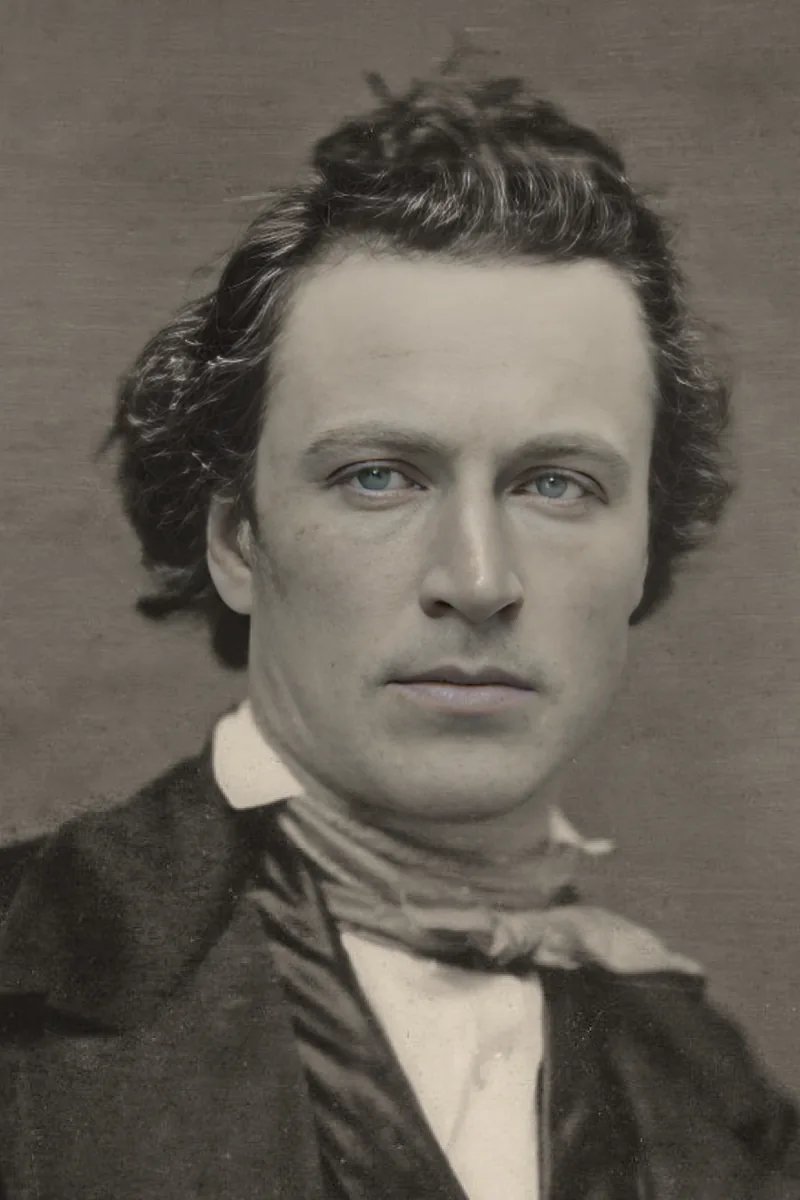
Background removal separates the subject from everything behind it. The model does the heavy work in a second, but the quality of the result depends mostly on the source picture and on a quick check of the edges before you download.
Pictures that cut out well
Contrast between subject and background is what matters: a dark jacket on a light wall, a face against a plain sky. Busy backgrounds with colours close to the clothes or hair give softer, less precise edges. Sharp, well-lit pictures help as much as for any other edit.
Hair, glasses and thin details
Loose hair, transparent glasses, fur and lace are the hard cases. Zoom in on the result: a thin halo of the old background, or hair that looks cut with scissors, is the sign of a difficult source. A tighter hairstyle or a plainer background at shooting time avoids most of it.
Choosing the new background
A plain colour is the safest choice for ID photos, product pictures and profile portraits. For a scene, match the light: a subject lit from the left placed on a scene lit from the right never looks right, however clean the cut-out.
Transparent export
If you plan to place the subject on something else later — a document, a slide, a shop page — export with a transparent background as PNG. JPEG has no transparency and fills the background with white.
Checklist
- Plain or contrasting background at shooting time
- Subject in focus, evenly lit
- Zoom in on hair and edges before downloading
- Match the light direction of any new scene
- PNG for transparency, JPEG for a filled colour
The cleanest cut-outs start with the simplest pictures. When you can choose, shoot the subject against a plain wall and let the tool do the rest.