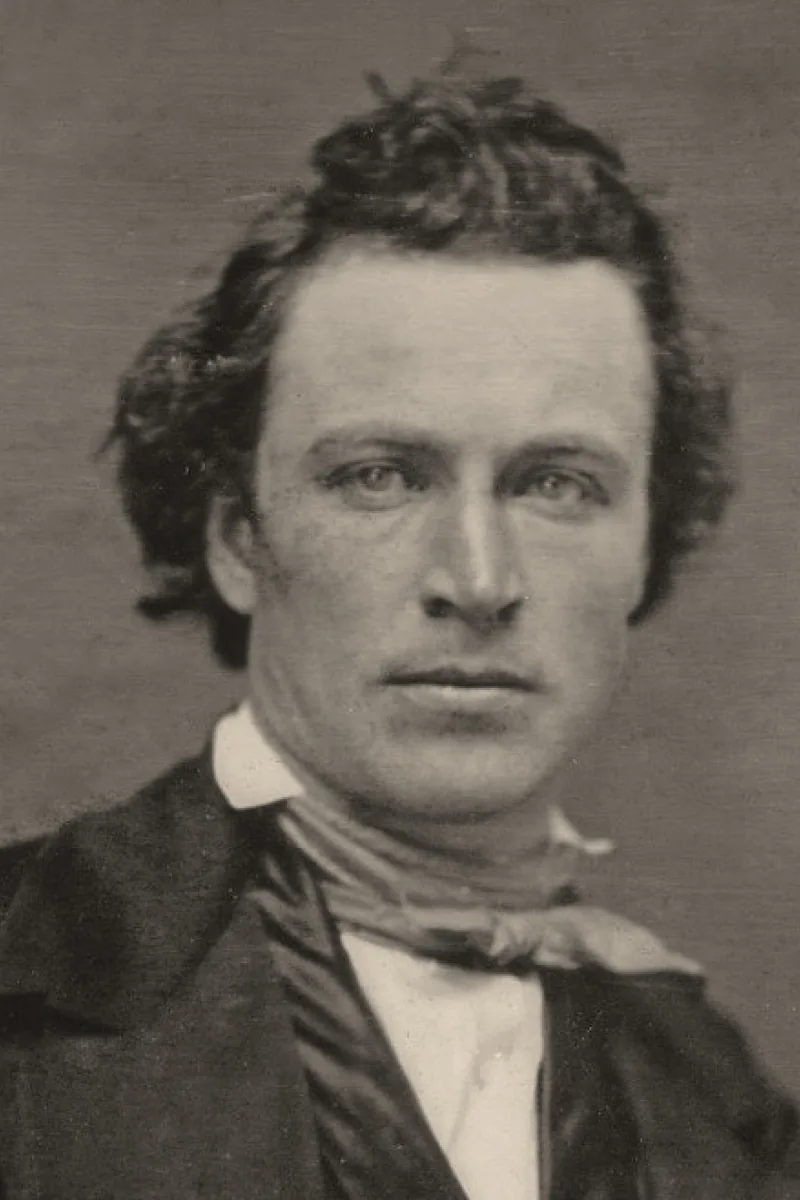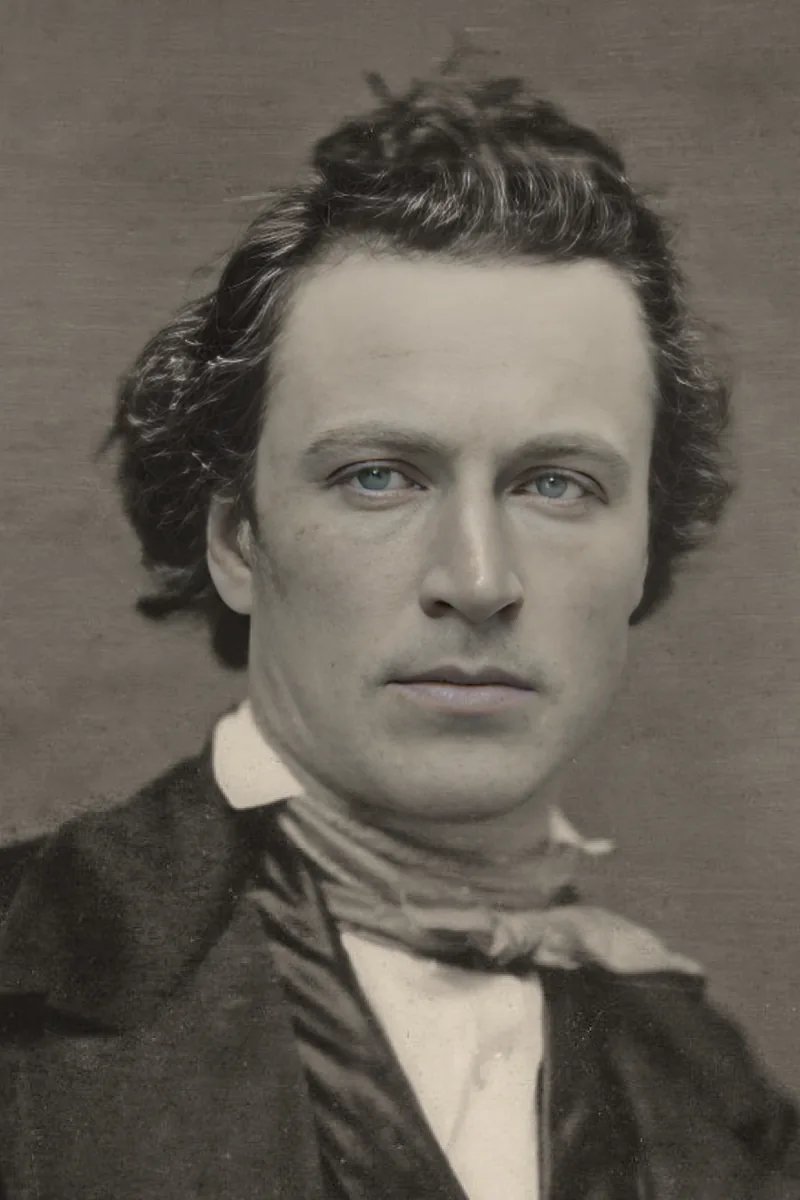
Most pictures need the same handful of corrections: a tighter crop, a level horizon, a bit more light, truer colours. The photo editor offers many tools, but these five adjustments, applied in this order, do most of the work.
Crop and aspect ratio
Crop first: it decides what the picture is about. Remove distractions at the edges and place the subject off-centre rather than in the middle. Choose the ratio for the destination — 1:1 for a profile picture, 4:5 for a portrait post, 3:2 or 16:9 for a screen.
Straighten
A tilted horizon or a leaning building is noticed before anything else. Use the straighten control with the grid until horizontal lines are level; a small crop is applied automatically to remove the empty corners.
Exposure and contrast
Brighten until skin and mid-tones look natural without turning the sky white. Then add a touch of contrast for depth. The shadows and highlights sliders recover a dark face or a washed-out sky without touching the rest.
White balance and colour
Indoor light turns pictures orange, shade turns them blue. Correct the white balance until something you know is white or grey looks neutral. Add saturation last and sparingly: skin tones are the first to look wrong.
Knowing when to stop
Compare with the original before exporting. If the edit is the first thing you see, pull every slider back by a third. A good edit looks like a better photo, not like an edited one.
Checklist
- Crop, then straighten, then light, then colour
- Pick the aspect ratio of the destination
- Keep skies and skin natural
- Fix the white balance on a neutral grey
- Compare with the original before exporting
Edit in the same order every time and the process takes a minute. Save the edited version as a copy so the original stays available for a different crop later.